Complete guide to install and use Webful on your site
Webful is an ultra-lightweight and privacy-friendly traffic analysis solution. This documentation will guide you step by step to install Webful on your website.
One-click installation from WordPress.org. Available directly from your WordPress admin.
→ See guide🎉 WEBFUL Analytics is now available on WordPress.org!
Ultra-simple one-click installation from your WordPress admin. No need to download or manually upload the plugin.
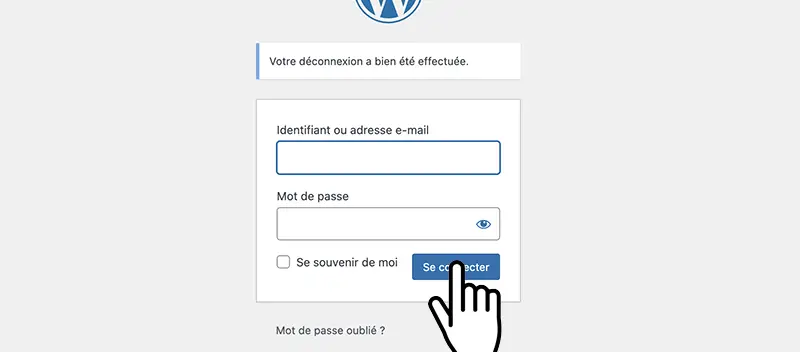
Log in to your WordPress administration
In the left menu, go to Plugins → Add New
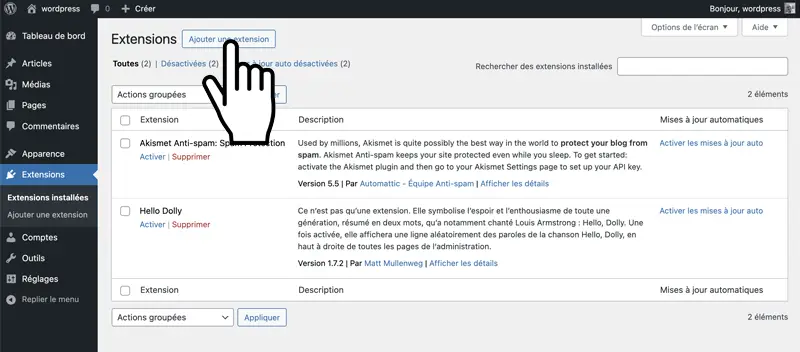
In the search bar, type WEBFUL

The WEBFUL Analytics plugin appears in the results. Click Install Now

Once installation is complete, click Activate

Accept consent for data processing
🔒 WEBFUL Analytics collects anonymized data to generate your statistics:
✅ GDPR Protection: No cookies, no identifiable personal data, data stored in Europe.

I accept and enable tracking
✅ The plugin is now installed, activated and configured!
Next step: connect your site to your Webful account
Check out the official plugin page, user reviews and detailed information.
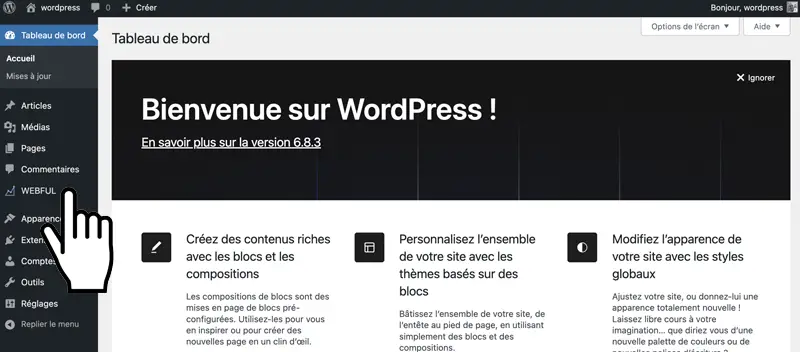
Open on WordPress.orgIn the WordPress left menu, click on Webful
Enter your Webful credentials:
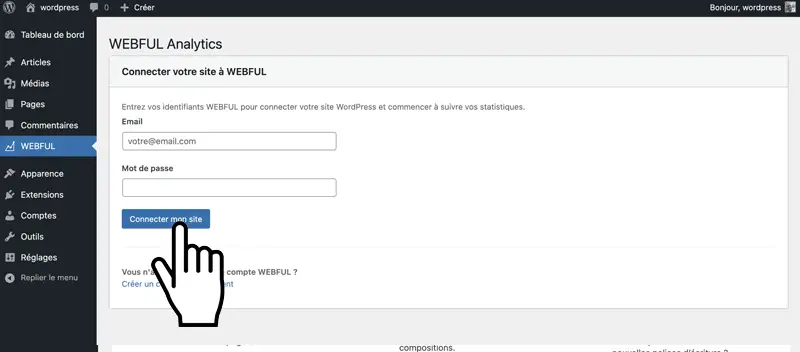
Click Connect my site
The plugin will automatically register your WordPress site in your Webful account.
You will see the status Connected
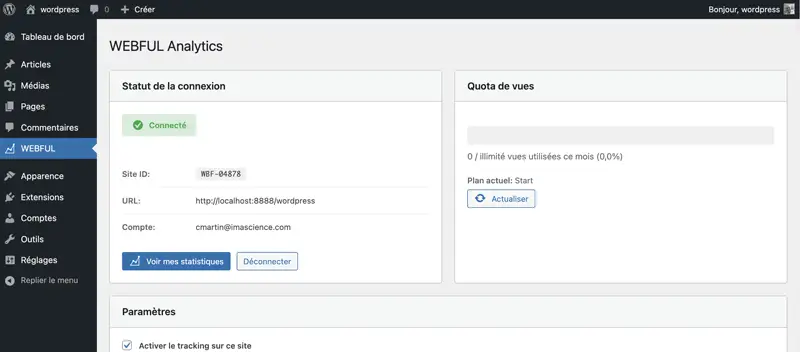
🎉 Congratulations! Your WordPress site is now connected to Webful!
Tracking is automatically enabled on all pages of your site.
On the plugin configuration page, you can customize the behavior:
Don't track logged-in administrators
Your own visits won't be counted (recommended)
Pages to exclude from tracking
Exclude certain pages (e.g.: /thank-you, /confirmation)
📌 This method is for any non-WordPress site: HTML or PHP site, CMS such as Kirby, Grav or PrestaShop, static site generator (Jekyll, Hugo, Astro...), JavaScript framework or hand-coded site.
If you have a WordPress site, use the WordPress plugin instead.
Log in to your Webful dashboard
Go to My sites
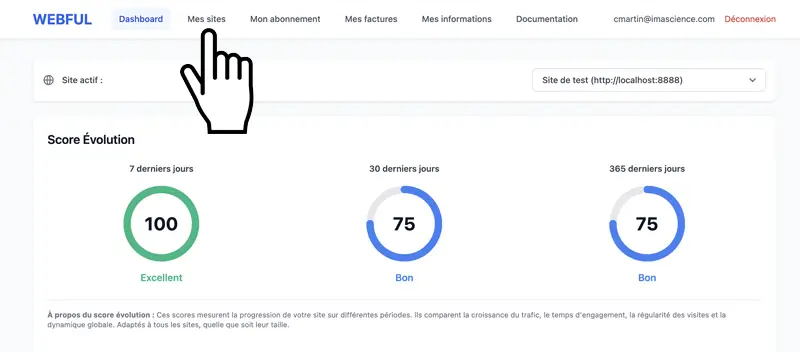
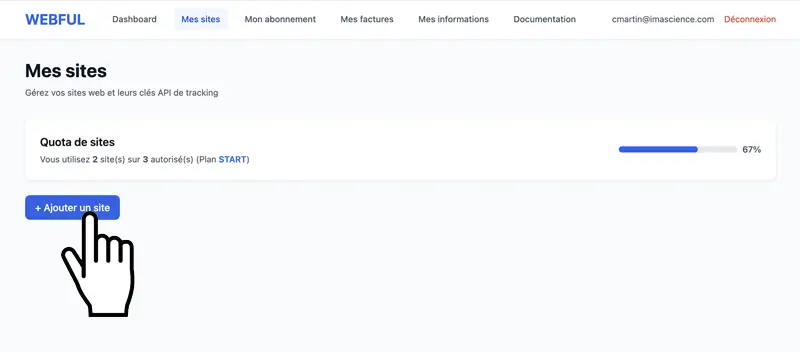
Click + Add a site
Fill in the form:
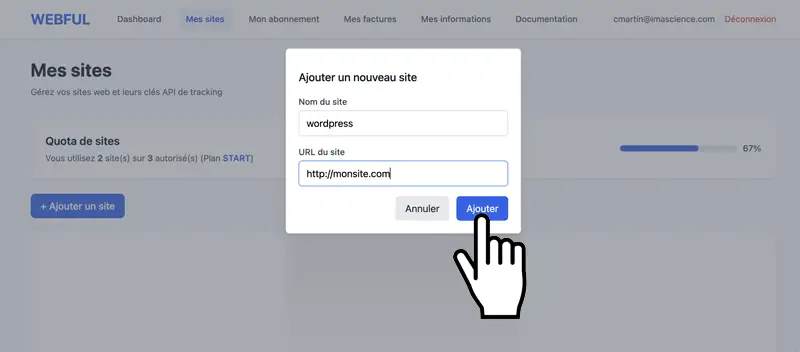
Click Create site
Webful will automatically generate a unique tracking code for your site.
Once the site is created, you'll see the tracking code displayed
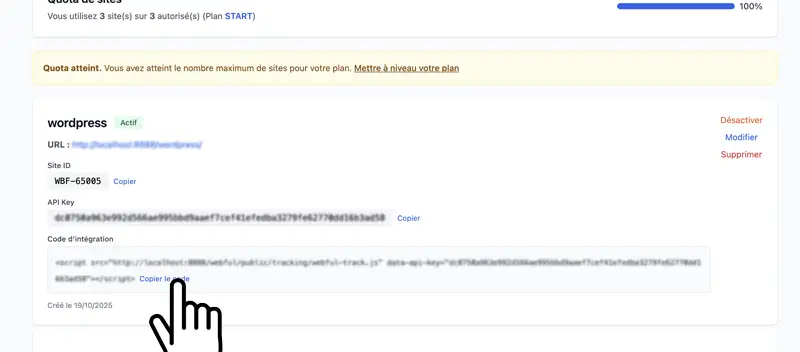
Click the Copy code button
The code looks like this:
Paste the tracking code in the <head> section of all pages on your site:
⚠️ Important:
<head>, not in the <body>💡 Tip:
If your site uses a header.php or header.html file shared by all pages, add the code once in that file. It will automatically be present on all pages! Same principle in a CMS or static site generator: paste it in the common layout (e.g. snippets/header.php in Kirby, the default layout in Jekyll, Hugo or Astro).
✅ Tracking is now installed on your site!
Once tracking is installed (WordPress or classic site), verify everything works correctly:
Open your site in a private browsing window (to avoid being blocked if you enabled "Don't track admins")
Click on several pages of your site to generate visits
Log in to your Webful dashboard
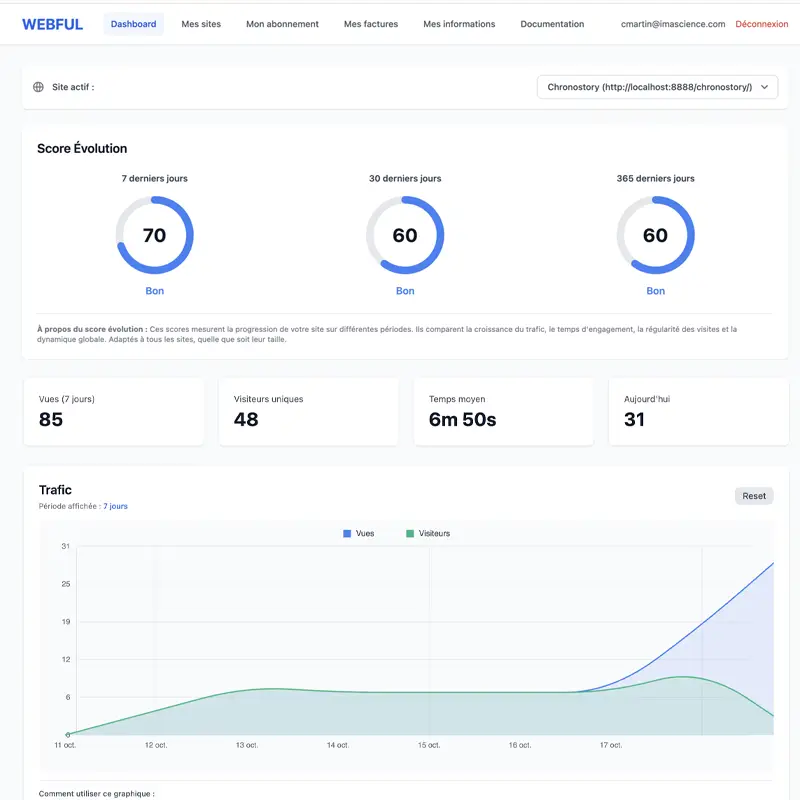
You should see your visits appear in the statistics! 📊
✅ Everything works perfectly!
You can now track all your statistics in real-time from your Webful dashboard.
❓ Statistics not showing?
Check the Frequently Asked Questions section below.
Check the following points:
No! The Webful tracking script is less than 1 KB and loads asynchronously. It has no noticeable impact on your site's loading speed.
No, your visits are NOT counted if you're logged into Webful!
✅ Automatic protection enabled
When you're logged into your Webful account and visit your own site, your visits aren't recorded in the statistics. This ensures accurate data representative of your real visitors.
⚠️ Important: How to test tracking without skewing your statistics
If you want to test that tracking works correctly on your site, you need to:
💡 Tip: Private browsing is the simplest and fastest method to test.
ℹ️ Technical note: This protection works through your Webful login session. The system automatically detects that you're the site owner and excludes your visits from statistics.
Yes, completely! Webful is designed to be privacy-friendly:
Yes! The number of sites depends on your account:
If you need help, several options are available:
Our team typically responds within 24 hours on business days.
Yes, your data is protected with an enterprise-grade backup strategy:
In case of any issue, we can restore your analytics to any moment from the last 30 days. Your data will never be lost.
Create your free Webful account and install tracking in 5 minutes

Cléa's tips